Most badly printed calendars come from two settings: a PDF made for one paper size printed on another, and a print dialog that quietly shrinks the page. Both take a minute to fix once you know what to look for.
The Four Paper Sizes
- Letter: 8.5 × 11 in (216 × 279 mm). The default in the US, Canada and Mexico.
- A4: 210 × 297 mm (8.3 × 11.7 in). The default almost everywhere else. It is 6 mm narrower and 18 mm taller than Letter.
- Legal: 8.5 × 14 in (216 × 356 mm). Same width as Letter, 3 inches longer.
- Tabloid: 11 × 17 in (279 × 432 mm), also called ledger when turned sideways. Twice the area of Letter.
Exact dimensions for every standard sheet are listed in the paper size overview.
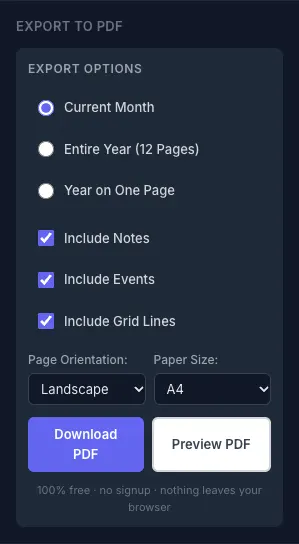
The CalendarBest builder exports Letter, A4 and A3 (297 × 420 mm). There is no Legal or Tabloid export, but both can be printed from the existing sizes, as described below.
Step 1: Export the Size of the Paper in Your Printer
Choose the paper size in the export panel before you download, and pick the same size in the print dialog. In the US that means Letter; in Europe, the UK and Australia it means A4. A Letter PDF printed on A4, or the other way round, is the most common reason for clipped edges or an off-center grid.
Keep the orientation on portrait. The month grid is 200 mm tall and starts 60 mm from the top of the page, so it needs about 260 mm of height. Letter and A4 in landscape are only 216 and 210 mm tall, which cuts off the bottom rows. A3 is the only size that also works in landscape.
Step 2: Print at 100%
Print dialogs often default to "Fit to page" or "Shrink oversized pages". For a calendar PDF that already matches your paper, that only makes everything smaller. Look for:
- Adobe Acrobat Reader: under Page Sizing & Handling, choose Actual size.
- Preview on a Mac: set Scale to 100% rather than "Scale to Fit".
- Other PDF viewers: look for "Actual size", "100%" or "No scaling".
You do not lose anything at the edges by doing this. CalendarBest PDFs have 20 mm (about 0.8 in) margins on the left and right, and most home printers cannot print the outer 3–6 mm (about 0.1–0.25 in) of a sheet anyway. At 100% the whole grid lands inside the printable area with room to spare.
Step 3: Check the Margins on a Test Page
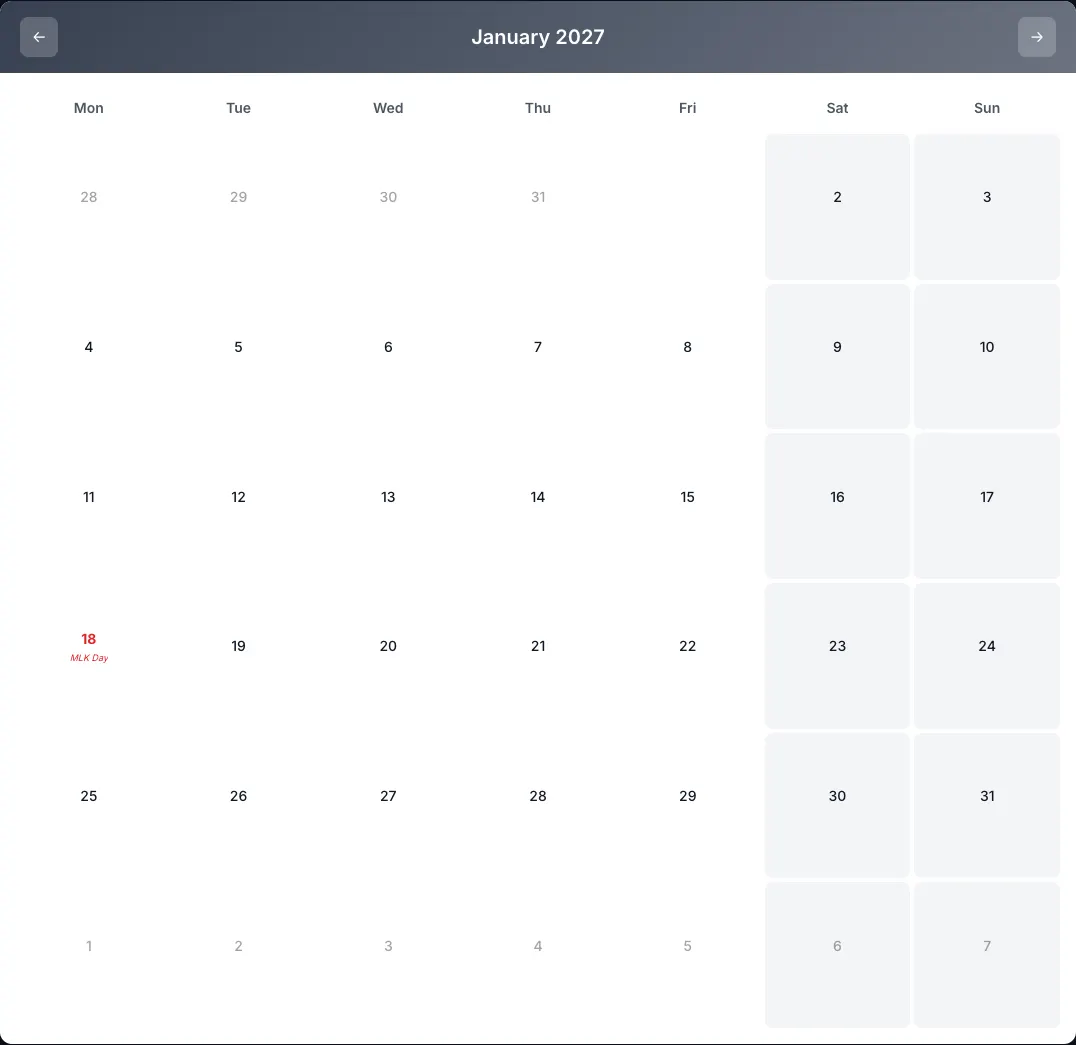
Print one month on plain paper before using cardstock. Hold it up to the light or fold it in half vertically: the grid should be centered, with equal white space on the left and right. If one side is wider, the printer driver is set to a different paper size than the one in the tray.
How much space you get at the bottom depends on the paper:
- Letter: about 19 mm (0.75 in) below the grid.
- A4: about 37 mm (1.5 in), enough to punch holes or write a line of notes.
- A3: the grid gets wider (cells about 37 mm wide instead of 25 mm) but not taller, so the lower third of the page stays blank. Turn on "Include notes" to fill it with your notes list, or leave it for handwriting.
On Letter and A4, the notes list does not fit under the grid and continues on an extra page. If you want notes on the same sheet, export on A3.
Printing on Legal Paper
Export Letter and print it on Legal at 100%. The width is identical, so the grid lands exactly where it would on Letter and you get an extra 3 inches (76 mm) of blank paper below it for notes, a chore list or a to-do column. Set the paper size in the print dialog to Legal, or the printer may stop and ask for Letter paper.
Printing on Tabloid (11 × 17)
Export A3 and choose "Fit to page" in this one case. A3 is 18 mm wider than tabloid, so scaling it down to about 94% keeps the full grid on the sheet. Most home printers cannot take 11 × 17 paper at all; the guide to 11x17 calendars covers wide-format printers and print shops.
When the PDF and the Paper Do Not Match
Sometimes you have A4 paper and a Letter PDF from someone else. In that case, scaling is the right choice:
- Letter PDF on A4 paper: choose "Fit to page". The page shrinks to about 97%, with a little extra white space at the top and bottom.
- A4 PDF on Letter paper: choose "Fit to page". The page shrinks to about 94%, and the top and bottom margins get smaller.
If you made the calendar yourself, it is faster to go back to the builder and export it again in the right size.
Two Details That Catch People Out
The "today" box. If you export the current month, today's date prints with a shaded box and an outline in the template's main color. Export the month before it starts, or accept the marker, if you are printing a calendar to hang up.
Events print as dots, not text. Events you add in the builder appear in the PDF as small colored dots in the day cell (up to three, then a "+N"), which keeps the cells free for handwriting. Write the event names in by hand or keep them in the notes list.
Quick Checklist
- Export the paper size that is in your printer, in portrait.
- Print at 100% (Actual size), not Fit to page.
- Print one test page on plain paper and check the margins.
- Load cardstock and print the rest.
For ready-made layouts, start from a monthly template or the 2027 calendar, then open it in the builder to change the paper size before you export.
Frequently asked questions
At 100% (Actual size) when the PDF matches the paper in your printer. CalendarBest PDFs already have 20 mm side margins, which is more than the unprintable edge of home printers, so fit to page only shrinks the calendar. Use fit to page only when the PDF and the paper size differ, such as an A3 PDF on 11 x 17 paper.
Yes, choose "Fit to page" and it prints at about 97%. If you made the calendar in CalendarBest, exporting it again as A4 gives a full-size result.
Usually because it was exported in landscape on Letter or A4. The month grid needs about 260 mm of page height, and those sizes are only 216 and 210 mm tall in landscape. Export in portrait, or use A3 for landscape.